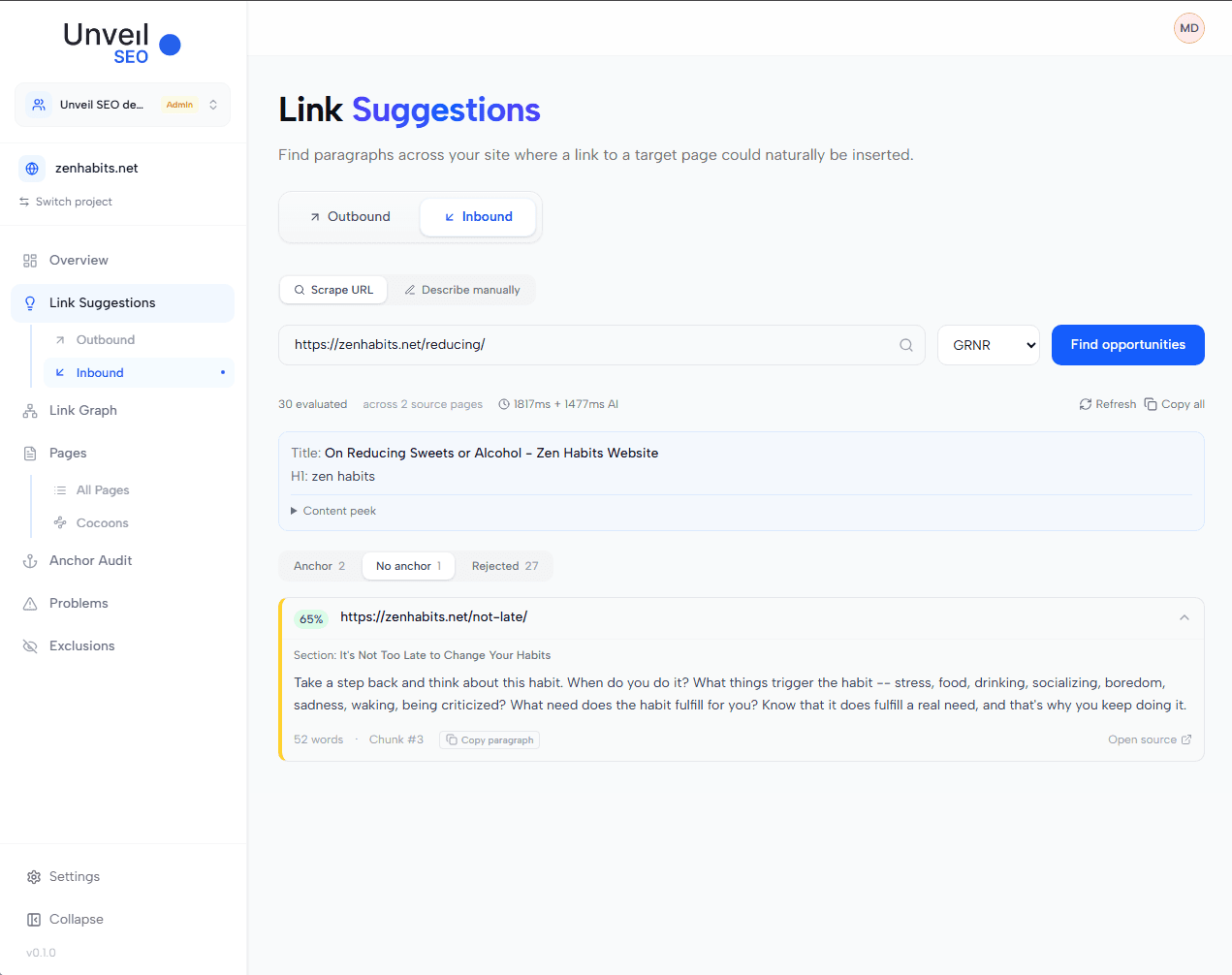

Outbound Link Suggestions adds internal links to any page on your site, automatically. You paste a URL, the tool reads the content, and it tells you which phrases would make good anchors and which pages they should link to.
What makes it different: the matches are semantic, not keyword-based, and every suggestion comes with a multi-word anchor and an AI-generated rationale that explains why the target page fits. This page covers outbound suggestions (links going out from one page); for the reverse direction, see Inbound Link Suggestions.
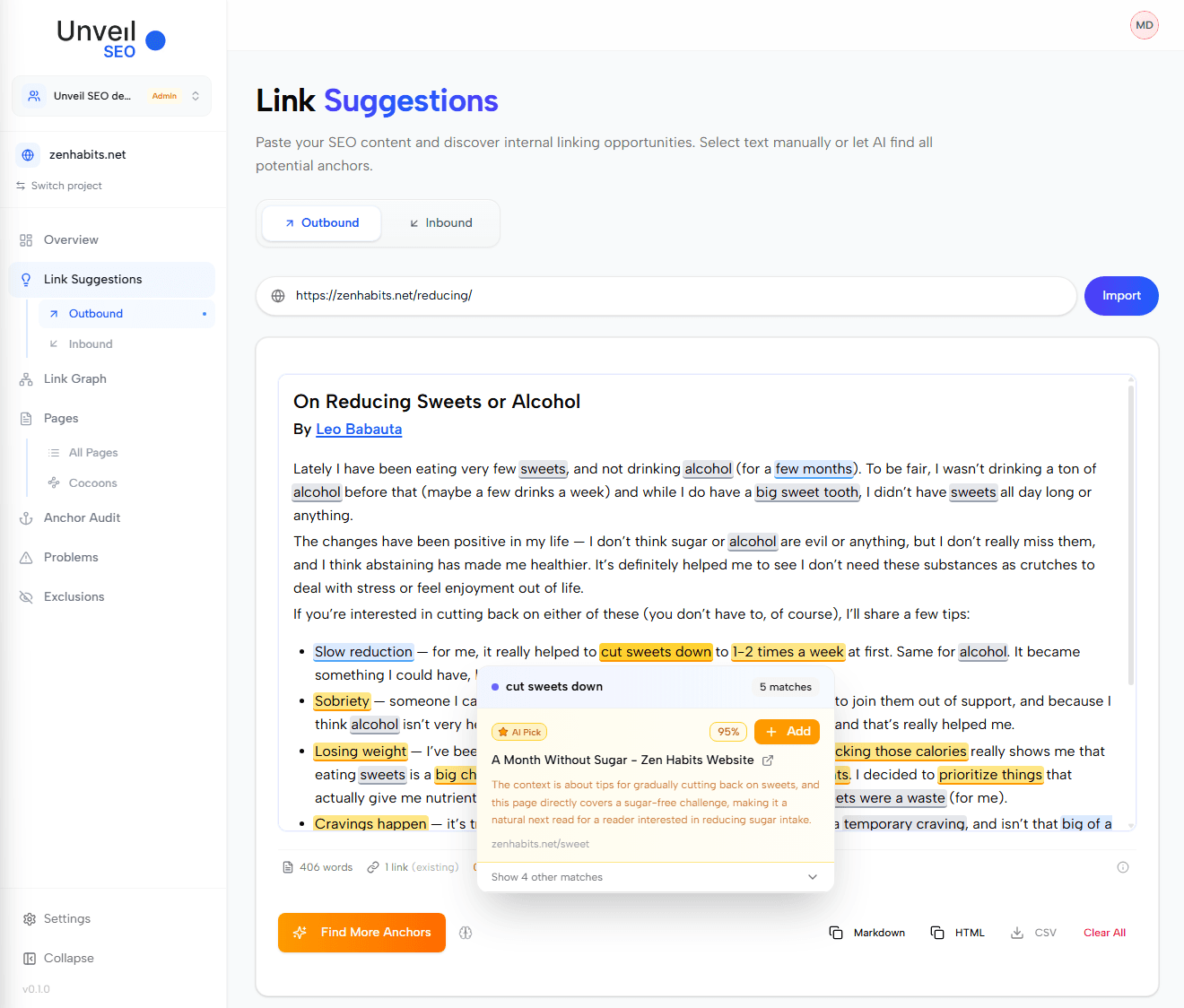
A yellow internal link suggestion open in the Outbound Link Suggestions editor, with the AI explanation panel showing the anchor text, the target page, and the rationale.
How to use it
Paste a URL, click Analyze, review the color-coded suggestions, and export. The tool reads your page, identifies word groups with linking potential, and matches them semantically against every other page on your site. Each suggestion is scored, reviewed, and added one click at a time.
Step 1. Import the page to analyze
Paste the URL of the page you want to enrich into the URL bar, then click Import. The tool scrapes the page content and loads it into the editor, ready for analysis.
URL bar in the editor with a sample page URL entered and the Import button highlighted, the page content loading into the editor.
Step 2. Run the semantic analysis
Click Analyze with AI. The tool identifies word groups in your text that carry linking potential and matches them against every other page on your site. This typically takes a few seconds.
Editor showing the analyzed page text with color-coded highlights marking yellow, blue, and grey internal linking suggestions.
Color legend
The analysis returns three types of highlight, each carrying a different signal:
| Color | What it means |
|---|---|
| 🟡 Yellow | Strong semantic match. The target page is highly relevant and worth adding if it fits your argument. |
| 🔵 Blue | Probable match. The connection is plausible but not as strong; open the suggestion and judge manually. |
| ⚫ Grey | Linking potential detected, but no matching page exists on your site. Useful as a content gap signal. |
🔍 Don't add every yellow suggestion. Strong semantic relevance is necessary but not sufficient: a link is worth adding only when it serves the argument in front of the reader and points to a page that genuinely deserves the equity. Treat the colors as a triage signal, not a verdict.
Step 3. Review and add suggestions
Click any highlighted anchor to open the suggestion panel. You see the proposed target page, the semantic similarity score, and (for yellow suggestions) the AI rationale explaining why the link makes sense in context. Click Add to insert it.
🔍 The suggested anchors are typically 3 to 6 words, which is the sweet spot research keeps confirming: long enough to carry semantic context, short enough to stay readable. Generic 2-word anchors ("internal linking") lose the surrounding meaning that makes the link valuable to Google and to AI engines; entire sentences as anchors dilute the signal. If you ever shorten a suggestion manually, keep at least the descriptive core.
A density bar at the bottom of the editor tracks link density in real time, with the optimal range marked between 1% and 3%.
🔍 The 1% to 3% range isn't arbitrary. When links become excessive on a page, the authority passed to each one is diluted and Google has more trouble identifying which pages actually matter. The bar turns red when you push past 3%, which is a clear signal to stop adding before exporting: a page with eight well-placed links typically outperforms the same page with twenty.
Once your new anchors are in place, Anchor Audit lets you review the existing anchors pointing to the same target pages from elsewhere on your site, so the overall anchor profile stays consistent.
Suggestion panel open on a yellow highlight, showing the semantic similarity score, the AI rationale, the Add button, and the link density bar at the bottom of the editor within its optimal range.
Step 4. Export the result
Once you have added all the suggestions you want to keep, click the export button. See the Export section below for which format to choose.
Advanced options
| Option | What it does | When to use it |
|---|---|---|
| List of added anchors | Shows every anchor already inserted on the page and the suggestions still available. | When working iteratively across long sessions, or when you want to audit what you have added before exporting. |
| Find more anchors | Re-runs the algorithm on the same text to surface additional anchor candidates. | When the initial pass returned too few suggestions, or none that fit your editorial intent. |
| Force finding link on desired anchor | Select any text passage in the editor, right-click, and choose Find Links. The tool will search for a matching target page on that specific anchor. | When you have a phrase you know should link somewhere on your site, but the algorithm did not flag it. |
If you need to keep certain pages out of every suggestion (legal pages, parking pages, deprecated content), the Exclusions feature handles that at the site level.
💡 Pages marked
noindexare excluded from suggestions by default. You can override this in Exclusions if you want them included anyway.
Export and integration
| Format | What you get | What to do with it |
|---|---|---|
| HTML | Full page content with <a> tags, target URLs, and rich title attributes on every link. | Paste directly into your CMS rich-text editor (WordPress, Webflow, Ghost, etc.). |
| Markdown | Same content in Markdown syntax. | Paste into Markdown-based CMS or static site generators (Hugo, Astro, Notion-based CMS). |
| CSV | Flat list of every newly added anchor with its position in the text and the target URL. | Send to your developer, your service provider, or your client (especially useful in agency workflows). |
To find which pages on your site would benefit most from running this workflow, the Pages list flags pages with high word count but few internal links, pages with strong PageRank but limited outbound links, and orphan pages, so you know where to start.